 Creasekit Box
Install
Run the installer, then restart Illustrator. Open Window › Creasekit › Box. Your 14-day Pro trial starts the first time the panel opens; the badge next to the title shows the days left.
Your first dieline
- Pick a box type from the tiles: Straight tuck, Reverse tuck or Mailer. Hover a tile for a short description.
- Type the inside length, width and height, the material thickness and the bleed. Switch between mm, in and pt at any time; the sizes are converted, not changed.
- If a size cannot work, the field turns red with a short reason, and the line under the button says which field to fix.
- The preview shows the flat size and updates as you type. Click Create dieline.
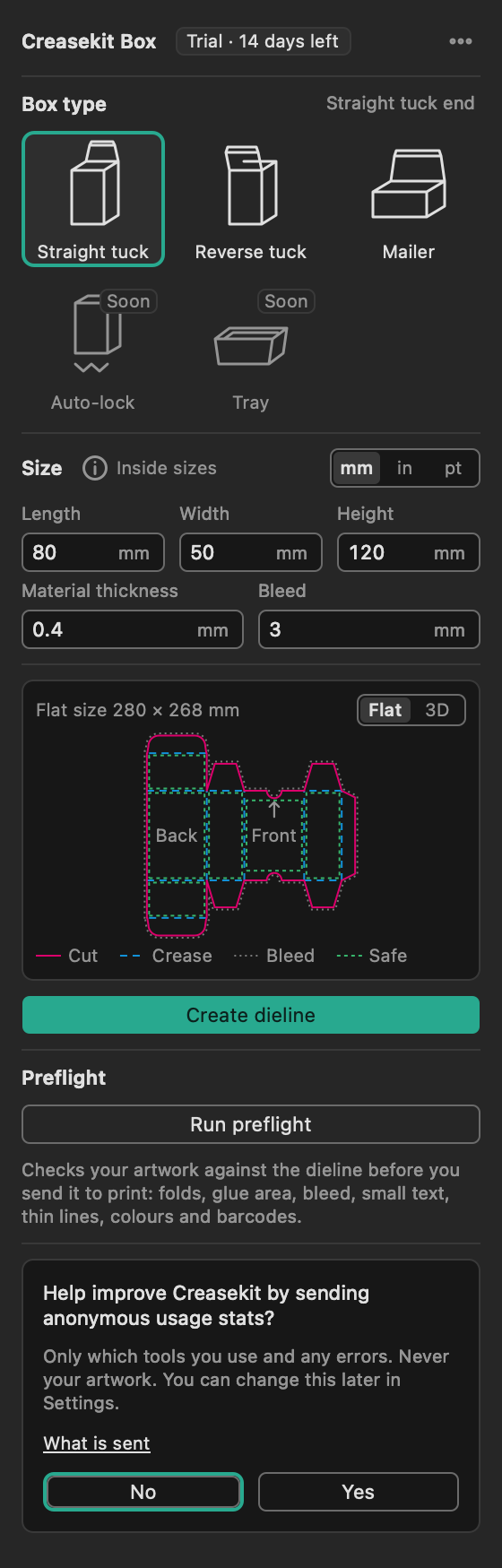
Creasekit adds layers named Cut, Crease, Bleed, Safe, Dimensions and Panel guide, and an Artwork layer for your design. The Panel guide names every face and shows which way is up; it never prints. The new dieline stays selected, so the panel is ready to resize it straight away.
Live resize
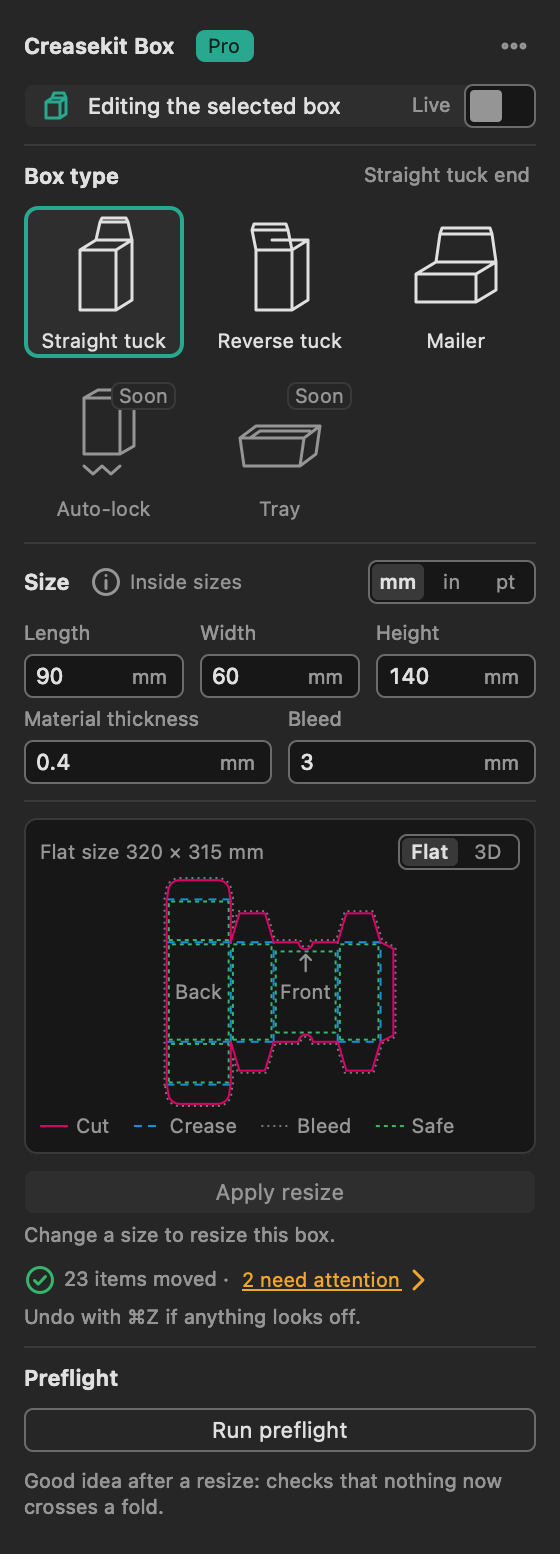
Select any part of a Creasekit dieline. The panel says Editing the selected box, loads its type and sizes, and the main button becomes Apply resize. Change the sizes and click it: the dieline is redrawn and everything on the Artwork layer follows its face.
- Backgrounds stretch with their face; logos and text keep their size.
- The panel says how many items moved. Items that no longer fit are counted, and one click selects them.
- One Undo restores everything.
- Name an object with “barcode” in its name to have it checked as a barcode.
Update the artboard as you type
With a dieline selected, turn on the Live switch at the top of the panel. The dieline on the artboard follows your sizes as soon as you stop typing, so you can try sizes with the client watching. Each update can be undone with ⌘Z. Live resize is part of Pro.
Packaging preflight
Click Run preflight. Creasekit checks the Artwork layer against the dieline and lists what it finds, errors in red and warnings in amber. Each row says which face and what kind of item. Click a row to select the item and zoom to it.
| Check | What it finds | Plan |
|---|---|---|
| Crosses a fold | Text or artwork bending over a crease | Free |
| Missing bleed | Background art that stops at the cut line | Free |
| Glue area | Ink where the glue flap is stuck down | Pro |
| Near the cut or a fold | Text outside the safe area or close to a crease | Pro |
| Text too small | Type that may not print clearly | Pro |
| Hairline stroke | Lines too thin to print | Pro |
| RGB colour | Colours that will shift when printed in CMYK | Pro |
| Barcode quiet zone | Barcodes too close to an edge | Pro |
Run it again after every resize: something that fitted before may now cross a fold.

3D preview
Switch the preview from Flat to 3D. The box folds up from the dieline step by step. With a dieline selected, your artwork is printed on the faces, so you can check the logo is on the front before anything is printed. Use Open lid and Close lid to see how the box opens. Drag to turn the box; double-click to go back to the first view.

Settings
Click ••• at the top right of the panel to open Settings; the arrow at the top takes you back.
- Defaults for new boxes: your usual units and bleed. You can still change them for each box.
- Privacy: anonymous usage stats are off until you turn them on. What is sent.
- Licence: paste the key from your purchase email and click Activate. A licence works on one Mac at a time. If it is active on another Mac, click Move licence to this Mac; the other Mac switches to the Free plan. You can move it 3 times in 30 days.
- Support: Copy log for support copies a plain-text log to paste into an email. Choose the Detailed log level only when support asks for it.

FAQ
Does Creasekit change my file if I open it without the plug-in?
No. Without Creasekit the file shows normal layers and paths.
Which sizes do I type?
The inside sizes of the finished box. Creasekit adds the material thickness where the board folds, so the product still fits.
What if my licence cannot be checked because I am offline?
Pro keeps working for 7 days after the last successful check. Creasekit checks your licence when Illustrator starts and every few hours, using only the key and a random ID for this Mac.
Does the 3D preview send my artwork anywhere?
No. The picture of your artwork is made in memory on your Mac, only while the panel shows 3D, and is never saved or sent.
What data does Creasekit send?
Only what is listed on the privacy page, and usage stats only if you say yes.